
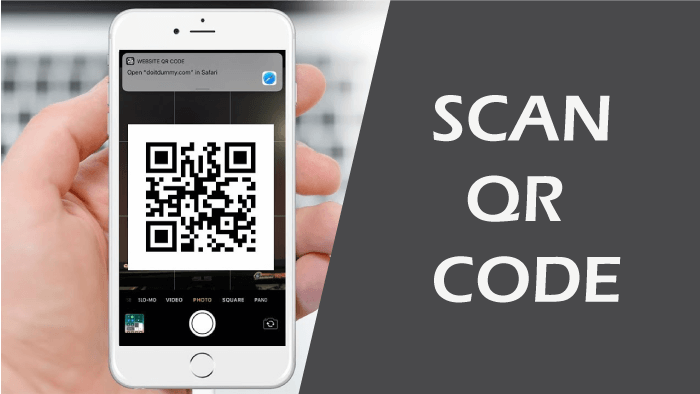
Scan QR Codes Online: A Step-by-Step Guide
QR codes make it easy to connect physical materials with digital information. They are commonly used on restaurant menus, product packaging, event tickets, posters, advertisements, and business cards.
If you want to scan QR codes online, a browser-based scanner can be a convenient option, particularly when the QR code is already available as an image. The process is generally quick and does not require specialized technical knowledge.
What Is an Online QR Code Scanner?
An online QR code scanner is a web-based tool that reads the information encoded in a QR code. Instead of relying on a dedicated application, users can access the scanner through a compatible internet browser.
Depending on the service, the QR code may be provided as an uploaded image or through another supported scanning method. The tool then analyzes the pattern and displays the decoded information.
Step-by-Step Guide to Scanning QR Codes Online
The exact interface can vary from one service to another, but most browser-based scanning processes follow a similar sequence.
Step 1: Prepare the QR Code
First, make sure you have a clear image containing the QR code. The image might be a photograph, screenshot, downloaded file, or digital document.
Try to ensure that the entire QR pattern is visible. Blurry or heavily cropped images can make decoding more difficult.
Step 2: Open an Online Scanner
Use a reputable online QR scanning service through your preferred web browser. There is usually no need to install additional software when the scanner operates directly online.
Make sure you are using the intended website and avoid unfamiliar services that make unnecessary requests for personal information.
Step 3: Upload the Image
Select the upload or scanning option provided by the service. Choose the QR code image from your device and allow the tool to process it.
If the first attempt does not work, check the image quality and try a clearer version.
Step 4: Wait for the QR Code to Be Decoded
The scanner analyzes the visual pattern and identifies the information stored within the code. A clear QR code can often be processed very quickly.
The result may appear as a website address, text, contact information, or another type of data.
Step 5: Review the Result
Do not immediately click or interact with the decoded information. Take a moment to determine what the result contains.
If it is a URL, examine the domain and consider whether it matches the organization or context associated with the QR code.
Step 6: Use the Information
Once you are satisfied that the result is legitimate, you can open the link, copy the text, or use the decoded information according to your needs.
If anything appears suspicious or unexpected, it is better to stop rather than continue.
What Can You Scan From an Image?
Online scanners can be useful for decoding QR codes stored in different types of digital content. Common examples include:
- Screenshots
- Photographs
- Downloaded images
- Digital documents
- Saved QR code graphics
The exact supported formats depend on the scanner you use, so check its requirements if an image cannot be processed.
Tips for Better Scanning Results
A QR code is easier to decode when its pattern is clear and complete. Avoid using extremely small, blurry, or distorted images whenever possible.
Keep the original image at a reasonable resolution and avoid applying filters that significantly change the contrast or structure of the code.
If scanning continues to fail, try obtaining a fresh image or capturing the QR code again with better focus and lighting.
Stay Safe When Scanning QR Codes
QR codes themselves are not automatically trustworthy. A code can direct you to a legitimate website, but it can also be used to send users toward phishing pages, misleading content, or unexpected downloads.
Before opening a decoded link, check its web address carefully. Be especially cautious if the destination asks for passwords, payment information, verification codes, or other sensitive details.
Basic Security Practices
- Scan QR codes from sources you recognize.
- Review URLs before opening them.
- Avoid entering sensitive information on unfamiliar websites.
- Do not download unexpected files or applications.
- Keep your browser and device software updated.
When Is Online QR Scanning Useful?
Online scanning is particularly convenient when a QR code exists as a digital image on a computer or laptop. It can save time when you do not want to transfer the image to a smartphone.
It is also useful for people who only occasionally need to decode QR codes and prefer not to install a separate application for that purpose.
Final Thoughts
Learning how to scan QR codes online is relatively simple. With a clear image, a compatible browser, and a reliable scanning service, you can decode QR information in just a few steps.
The process should always include a quick safety check. Review the decoded result before opening links, downloading files, or providing personal information, especially when the QR code comes from an unfamiliar source.